
Best YouTube Chrome Extensions for Creators (2026)
The 9 best YouTube Chrome extensions of 2026, ranked by job: outlier data, SEO stats, bulk edits, workflow. Plus a 5-point install safety check.


The best YouTube Chrome extension depends on the job. For research and performance data, install 1of10: it scores every video against its channel's average, free. For keyword stats, vidIQ. For bulk channel management, TubeBuddy. This guide ranks 9 extensions by the specific job each one does best, then shows you how to install them without wrecking your browser.
Creators lean on extensions because YouTube's own interface hides the data that matters. The watch page shows views, not whether those views are 2x or 40x that channel's normal. Chrome runs on roughly two thirds of desktop browsers (StatCounter, 2026), so for most creators the extension layer is the fastest way to bolt research data onto YouTube itself.
What Is the Best YouTube Chrome Extension in 2026?
For most creators, the best YouTube Chrome extension is the one that answers the only question that grows a channel: which videos are outperforming, and why. That is a research job, so a research extension comes first. SEO stats, bulk editing, and workflow tools earn a slot after that, not before.
Here is the full list by job:
- 1of10: outlier scores and performance research inside YouTube
- vidIQ: keyword and SEO stats on watch and search pages
- TubeBuddy: bulk channel management inside YouTube Studio
- Keywords Everywhere: search demand data in the search bar
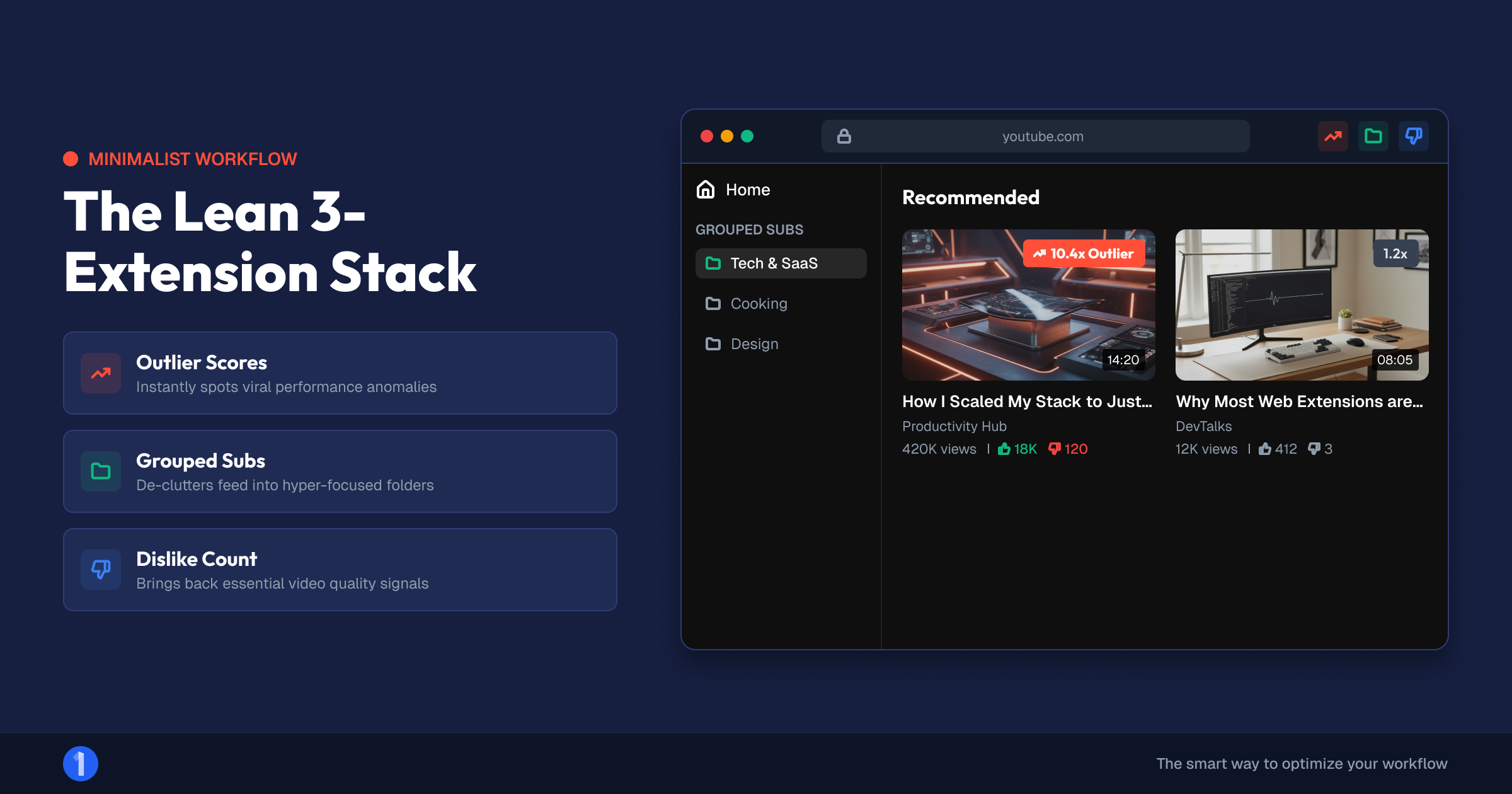
- Return YouTube Dislike: audience sentiment estimates
- PocketTube: subscription and research organization
- Enhancer for YouTube: playback defaults and viewing efficiency
- ColorZilla: color sampling for thumbnail design
- GoFullPage: full-page captures for your swipe file
How We Picked These Extensions
Three filters, applied to every extension for YouTube we tested:
- It does a real creator job. Research, packaging, management, or workflow. No novelty overlays.
- It behaves. Reasonable permissions, an identifiable developer, recent updates, and no measurable slowdown on YouTube pages.
- The free tier is genuinely useful. Paid upgrades are fine. Paywalls disguised as free tools are not.
Everything below passed all three. The first three are creator suites; the rest are single-purpose utilities that stack alongside them.
The 9 Best YouTube Extensions by Job
1. 1of10: outlier research inside YouTube
The job: find out which videos are overperforming, everywhere you browse.
The 1of10 Chrome extension scores every video you see against its own channel's average. A score of 10 means the video is doing 10x that channel's normal views. Those outliers are the fastest signal of a title, thumbnail, and idea combination that actually works, and the extension surfaces them on the homepage, watch pages, channel pages, search results, and Shorts.
What the free tier includes:
- Outlier scores and rankings on every video across home, watch, channel, search, and Shorts pages
- Views-over-time charts, so you can see whether a video spiked, is still climbing, or died on arrival
- Similar videos and similar thumbnails for any video you are watching
- Title and thumbnail change tracking, with before-and-after view impact, so you can see exactly what a creator changed and what it did to their views
That last one deserves a pause. When a big channel quietly swaps a thumbnail and views triple, that swap is a free packaging lesson. The extension logs it with the before and after.
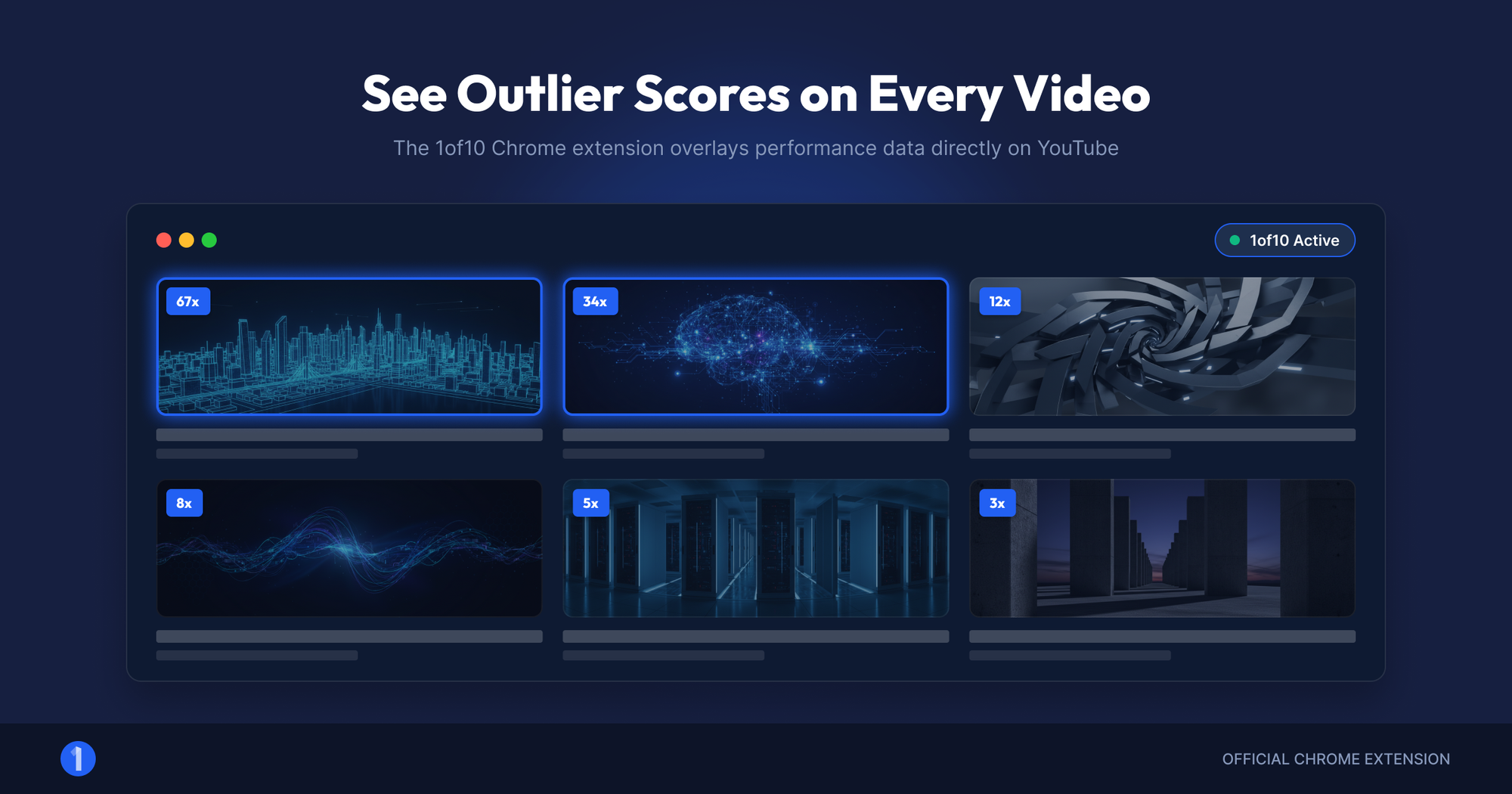
The paid tier adds unlimited similar-video discovery, AI idea generation based on the outliers you find, and competitor tracking. It also connects to the full Outlier Finder platform, which scans millions of channels rather than just the pages you happen to visit.
On performance: the extension lazy loads its data, so scores render as you scroll instead of blocking the page. YouTube feels the same speed with it installed. That matters more than it sounds; heavy overlay extensions are the number one reason creators uninstall this category.
Honest limits: 1of10 is a research tool, not a channel manager. It will not bulk-edit your end screens or audit your descriptions. That is TubeBuddy's job.
Price: free core. Paid plans from $19/mo on 1of10 pricing.
2. vidIQ: keyword and SEO stats
The job: keyword and competition data on watch and search pages.
The vidIQ extension adds a stats sidebar to watch pages: views per hour, engagement metrics, channel stats, and the video's tags. On search pages it scores keywords for volume and competition. If your niche is search-driven (tutorials, how-to, product reviews), that keyword view is genuinely useful for shaping titles and descriptions.
Honest strengths: the per-video stats sidebar is dense and fast to read, the keyword scores give directional guidance without leaving YouTube, and the free tier shows enough to be worth the install.
Honest limits: vidIQ's scores measure search behavior, and search drives a minority of views for most channels. Browse and suggested traffic respond to packaging, not keyword scores. We compared the two research philosophies in 1of10 vs vidIQ.
Price: free tier, paid plans for the deeper keyword and AI features.
3. TubeBuddy: bulk channel management
The job: manage a large back catalog inside YouTube Studio.
TubeBuddy lives inside YouTube Studio rather than on the viewing side. Its best feature is bulk processing: update end screens, cards, or description text across dozens or hundreds of videos in one pass. For a channel with 200 uploads and an out-of-date link in every description, that alone justifies the install.
Honest strengths: bulk edits, upload checklists, thumbnail preview against real competition, and A/B testing tools on paid tiers.
Honest limits: its research and keyword tools are shallower than vidIQ's, and it tells you nothing about which videos in your niche are overperforming. Full breakdown in vidIQ vs TubeBuddy.
Price: free tier, paid plans unlock bulk tools and testing.
4. Keywords Everywhere: search demand data
The job: search volume and trend data in the YouTube search bar.
Keywords Everywhere overlays volume, competition, and trend data directly on YouTube and Google search results. When you are choosing between two phrasings of a title for a search-driven video, seeing that one gets 12x the searches settles it in seconds.
Honest limits: it is a data layer, not a strategy tool, and it runs on paid credits after a limited free tier. Pair it with the free YouTube keyword generator for ideation before you spend credits validating.
5. Return YouTube Dislike: audience sentiment
The job: estimate the dislike counts YouTube removed.
YouTube hid public dislike counts in 2021. This open-source extension restores an estimate from extension-user data and archived counts. For research, a video with strong views and heavy dislikes is a warning: the packaging worked but the content let viewers down. That gap is exactly what you want to avoid copying.
Honest limits: the numbers are estimates, and accuracy is thinner on small videos. Treat it as a direction, not a measurement.
6. PocketTube: research organization
The job: group subscriptions into research folders.
PocketTube lets you sort subscriptions into groups: competitors, adjacent niches, packaging inspiration, personal viewing. When your research feed and your entertainment feed are the same feed, research loses. Grouping fixes that in ten minutes.
7. Enhancer for YouTube: viewing efficiency
The job: control how YouTube plays, permanently.
Set default playback speed, default quality, volume boost, and cinema mode once, and every video obeys. For creators watching hours of niche research daily, defaulting to 1.75x speed with forced 1080p saves real time every session.
8. ColorZilla: thumbnail color sampling
The job: grab exact colors from any thumbnail.
ColorZilla is an eyedropper for your browser. See a thumbnail whose palette pops in the feed, sample the exact hex codes, and carry them into your own design tool. Color choice moves click-through rate more than most creators think; we covered the evidence in the psychology behind high-CTR thumbnails.
9. GoFullPage: swipe file capture
The job: capture full pages of packaging inspiration.
GoFullPage screenshots an entire scrolling page in one click. Capture a search results page or a competitor's channel grid, drop it in your swipe file, and you have a dated record of what packaging looked like in your niche. Six months later, those captures show you how the meta shifted.
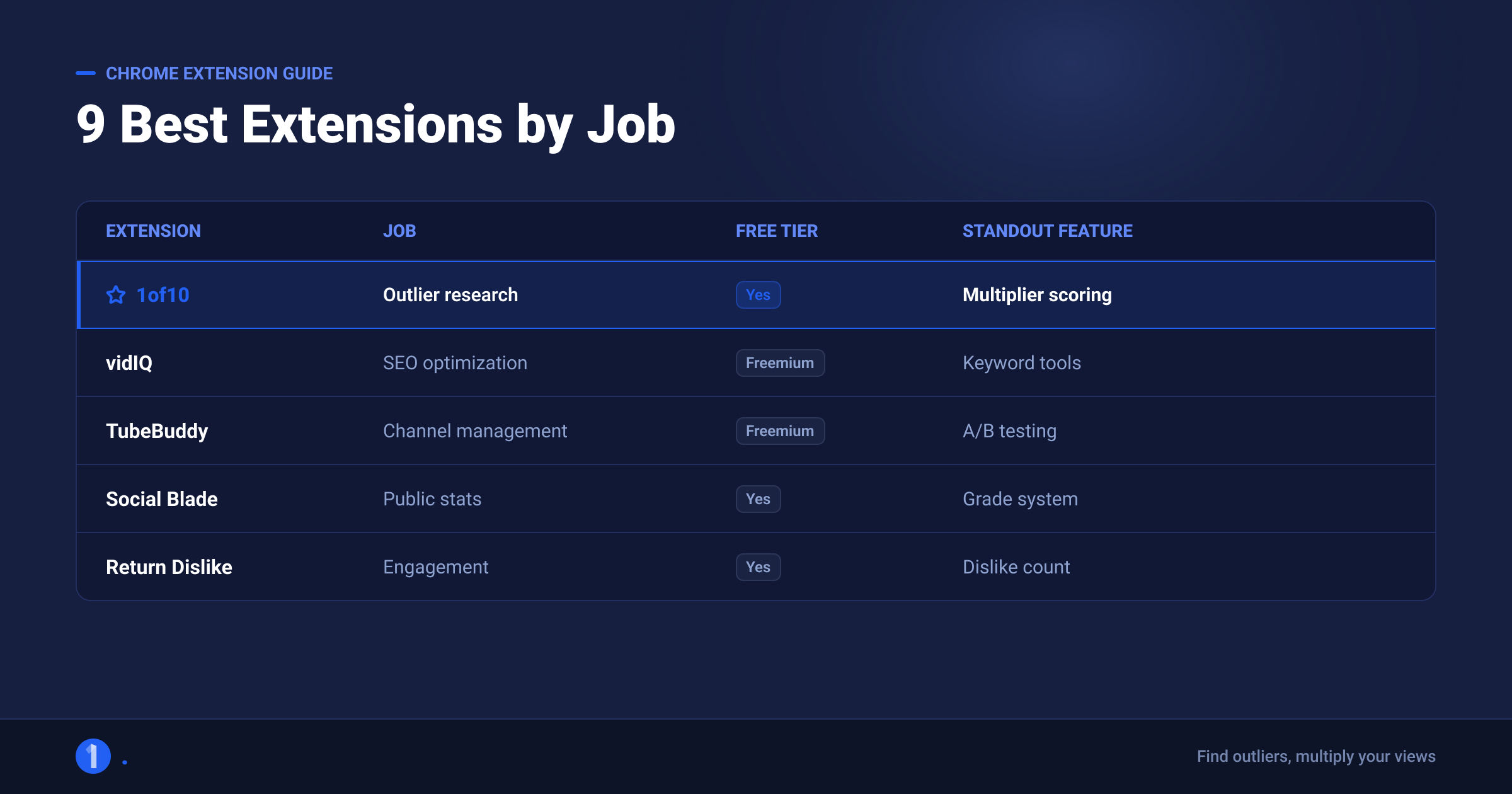
Comparison Table: YouTube Extensions at a Glance
| Extension | Job | Free tier | Standout feature |
|---|---|---|---|
| 1of10 | Outlier research | Yes, scores + charts + change tracking | Title/thumbnail change tracking with view impact |
| vidIQ | Keyword and SEO stats | Yes, core stats | Per-video stats sidebar |
| TubeBuddy | Bulk channel management | Yes, limited | Bulk edits across the back catalog |
| Keywords Everywhere | Search demand data | Limited, then credits | Volume data in the search bar |
| Return YouTube Dislike | Audience sentiment | Yes, fully free | Dislike estimates |
| PocketTube | Research organization | Yes, fully free | Subscription groups |
| Enhancer for YouTube | Viewing efficiency | Yes, fully free | Permanent playback defaults |
| ColorZilla | Thumbnail design | Yes, fully free | Exact color sampling |
| GoFullPage | Swipe file capture | Yes, fully free | Full-page screenshots |
How Do You Install a YouTube Extension?
Installing any extension for YouTube takes about a minute, and the process is identical for every tool on this list:
- Open the extension's Chrome Web Store page. Get there from the developer's own site (for example, the install button on the 1of10 extension page) rather than from a search, which can surface copycat listings.
- Check the listing details. Developer name, user count, rating, and the "Updated" date near the bottom. Thirty seconds here filters out most junk.
- Click "Add to Chrome" and read the permission prompt before confirming. The next section covers exactly what to look for.
- Pin it. Click the puzzle-piece icon in the toolbar and pin the extensions you use daily, so their controls stay one click away.
- Reload YouTube. Extensions inject on page load, so open tabs will not show the new overlay until refreshed.
If an overlay does not appear, check chrome://extensions to confirm it is toggled on, and confirm you are not in an Incognito window, where extensions are off by default.
How Do You Install Chrome Extensions Safely?
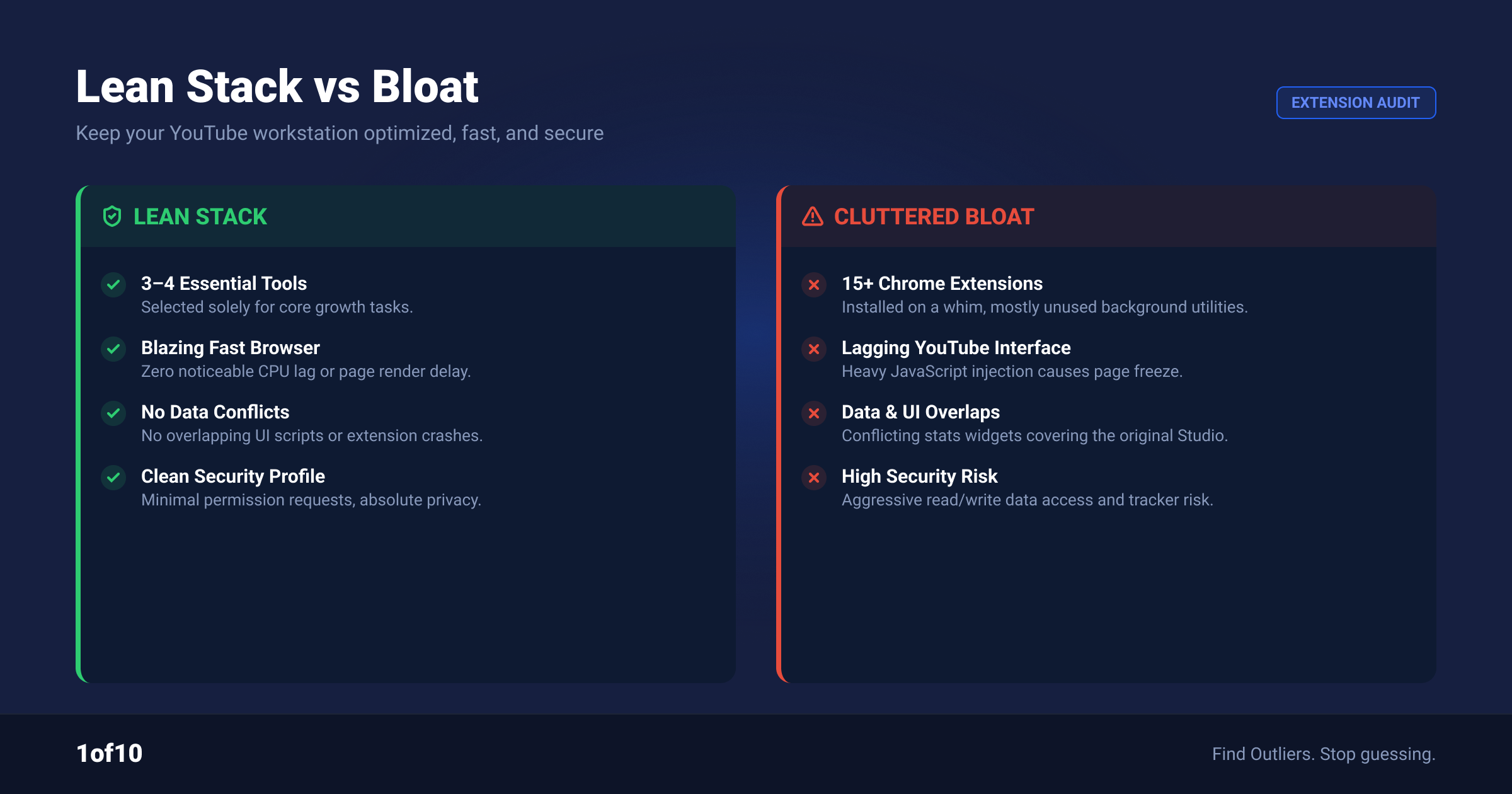
Install extensions only from the Chrome Web Store, check the permissions each one requests before confirming, and remove anything you stop using. Extensions run inside your logged-in browser, which means a bad one can read pages you visit. Five checks catch nearly every problem before it starts.
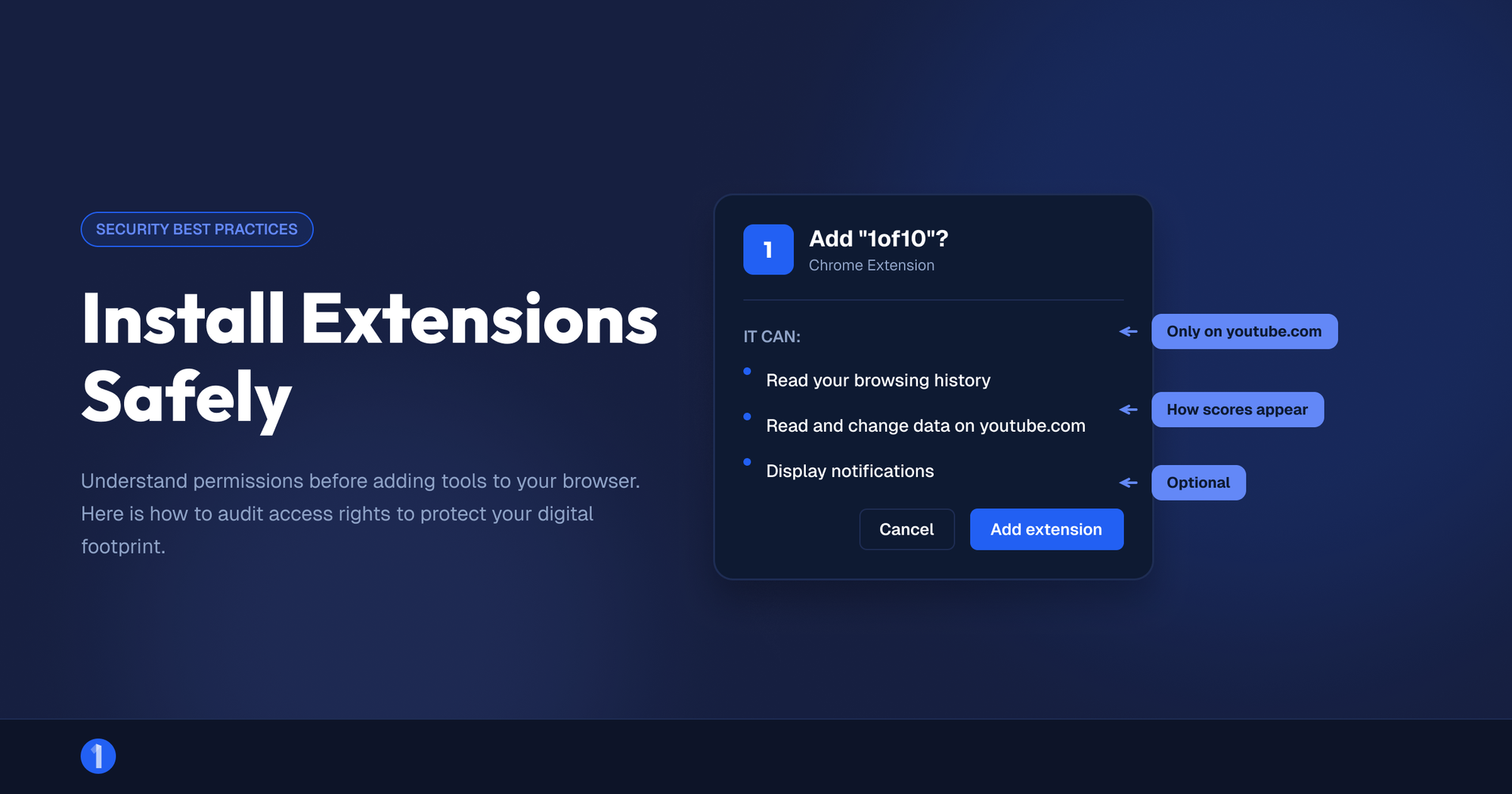
- Match permissions to function. A YouTube tool should ask for access to youtube.com, not "read and change all your data on all websites." Broad access is justified only when the function demands it (Keywords Everywhere legitimately needs multiple sites because it works across Google and YouTube). If the scope outruns the job, skip it.
- Check the developer. A real website, a privacy policy, and a support channel. Anonymous developers with no footprint are a pass.
- Read recency, not just ratings. Sort reviews by newest. An extension that was great in 2023 and abandoned since is a liability; abandoned extensions get sold, and the new owner inherits access to every installed browser.
- Never install view or subscriber boosters. Extensions promising free views, sub4sub exchanges, or watch-time bots violate YouTube's fake engagement policy. That risks channel termination, not just wasted time. We covered the wider scam ecosystem in our YouTube promotion guide.
- Audit quarterly. Open chrome://extensions every few months and remove what you no longer use. Fewer extensions means fewer things that can break, slow, or leak.
Which YouTube Extensions Should You Actually Install?

Do not install all nine. Extensions compound: each one adds scripts to every YouTube page, and a heavy stack makes the site crawl. Three to five is the practical ceiling for most creators.
The stack we would run:
- Every creator: 1of10 for research, PocketTube for organization. Both free.
- Search-driven niches (tutorials, reviews, how-to): add vidIQ or Keywords Everywhere.
- Large back catalogs (100+ videos): add TubeBuddy for bulk management.
- Design your own thumbnails: add ColorZilla and GoFullPage.
Then let the browsing do the work. With outlier scores visible on every page, ordinary viewing becomes passive research: you stop asking "is this video big" and start asking "is this video big for this channel," which is the question that predicts what will work for yours. When you want to go past what your feed happens to show you, the full outlier research workflow picks up where the extension leaves off.
Extensions are one layer of a bigger toolkit. For the platform-level tools (research suites, analytics, and packaging tools that live outside the browser), see our guide to the best YouTube SEO tools.
Try it now: install the free 1of10 Chrome extension and open your YouTube homepage. The outlier scores on your own feed will tell you more about your niche in five minutes than an hour of manual channel-hopping.
FAQ
What is the best free YouTube Chrome extension?
For research, the 1of10 extension: outlier scores, video rankings, views-over-time charts, similar videos, and title/thumbnail change tracking are all free. For pure utility, Return YouTube Dislike, PocketTube, and Enhancer for YouTube are completely free. The strongest free stack combines 1of10 for data with one or two utilities for workflow.
Do YouTube extensions slow down your browser?
They can. Every extension injects scripts into YouTube pages, and heavy overlay tools are the usual culprits. Well-built extensions lazy load their data so the page renders first; 1of10 works this way. Keep your stack to three to five extensions, and remove anything you have not used in a month.
Are YouTube stats extensions against YouTube's rules?
No. Extensions that display public data, like outlier scores, views per hour, or keyword stats, do not violate any YouTube policy. What violates policy is fake engagement: extensions or services that generate artificial views, likes, or subscribers. Those risk channel termination under YouTube's fake engagement rules, so avoid anything promising free growth.
Can I use these extensions on mobile?
Not in the normal Chrome mobile app, which does not support extensions. A few Android browsers (Kiwi, and recent Edge builds) can run Chrome extensions, but the experience is inconsistent. Treat extension-based research as a desktop workflow, and use the 1of10 web platform when you are away from your desk.
Do I need a paid extension to grow on YouTube?
No. Free tiers cover the core research loop: spotting outliers, reading performance charts, and studying packaging changes. Paid tiers earn their price when research becomes routine, for unlimited similar-video discovery, competitor tracking, and AI ideation. Upgrade when the free tier becomes the bottleneck in a workflow you already run weekly.